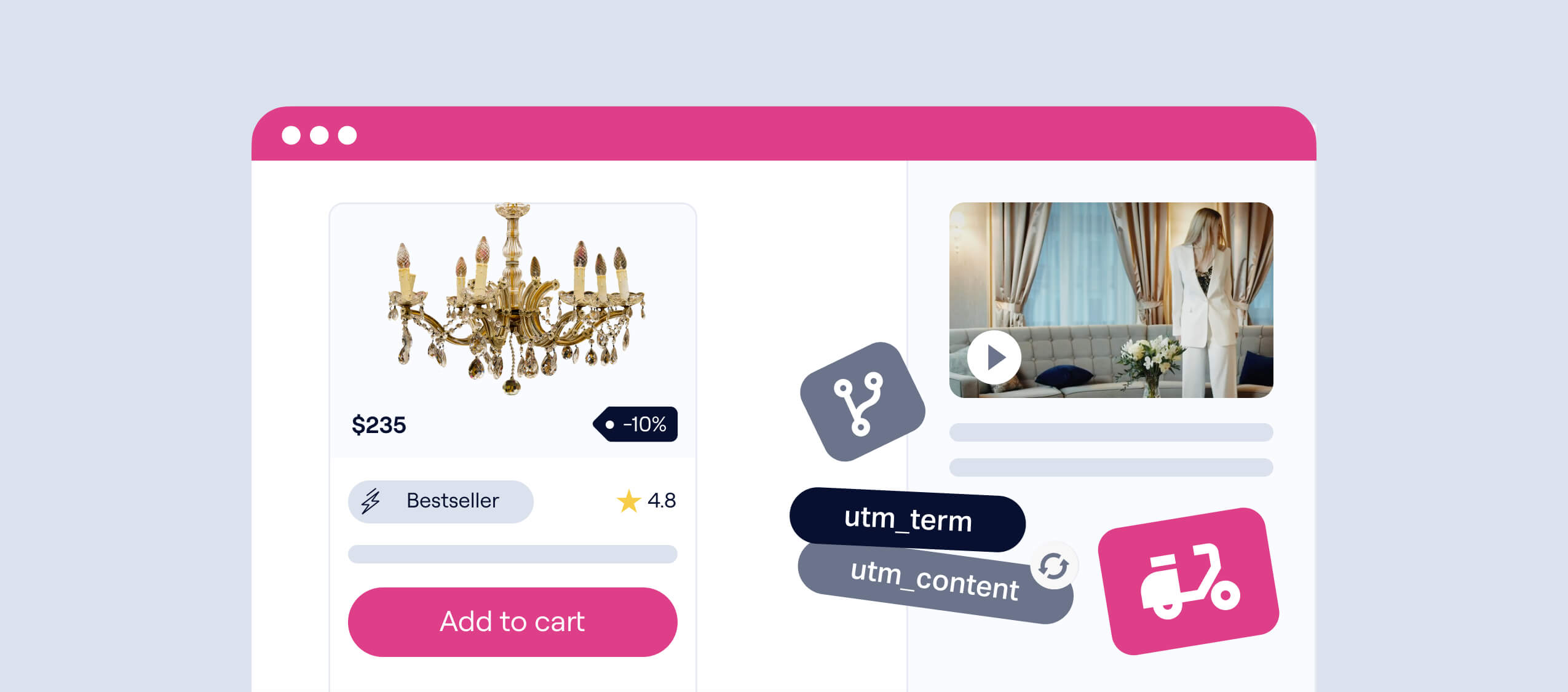

Five quiz store features to boost E-commerce conversion
We've selected 5 features that help optimize the sales funnel and increase quiz store conversion:
- Question branching
- Delivery in the quiz
- Video on the start page and in smart tips
- Dynamic content
- Discounts, bonuses, badges, and promo codes
💡A quiz store is a new quiz format where a potential buyer answers questions, and the quiz selects a product or service based on the responses. The suitable product can be added to cart, paid for, and delivery can be ordered, or you can leave a request and talk to a manager. An online store in a quiz, but better.
Basics: If you haven't built a quiz store yet, here's more details about the mechanics
Details: And here's how to connect payment services to a quiz
Here's a quick rundown: what, how, and why ⬇️. Quick because you need to run, implement, and sell already.
Question branching
Just like a sales manager's script has different questions depending on the client's answers, a quiz can also have separate dialogue branches. This way we build relevant questions and the user sees that their answers are being taken into account.
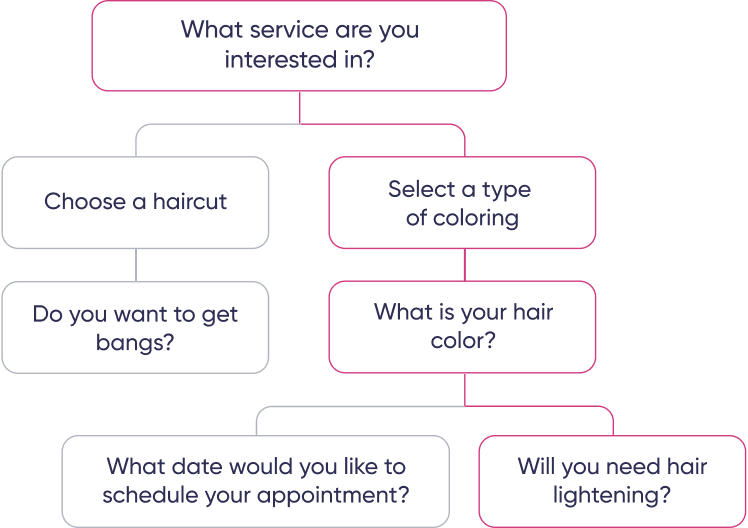
Branching helps segment the audience and give each person a more precise result. The more carefully the quiz is designed, the warmer the leads will be. Customers love a personalized approach, and a quiz store can provide exactly that automatically.
In a lighting fixture selection quiz, we clarify the request parameters:
If a person wants to replace an old fixture, you can ask what's missing from that fixture. This will help provide an option that matches the important parameters.
How to set it up
— Click the branch icon on the question card
— Set the condition: which question and which answer should trigger the current question
💡Detailed instructions on how to set up question branching
Delivery in the quiz
Since the customer can pay for their order in the quiz, a delivery option is also needed. To an address, to a pickup point — all delivery methods are at hand. No need to create a separate question about the date and location, everything is generated automatically.
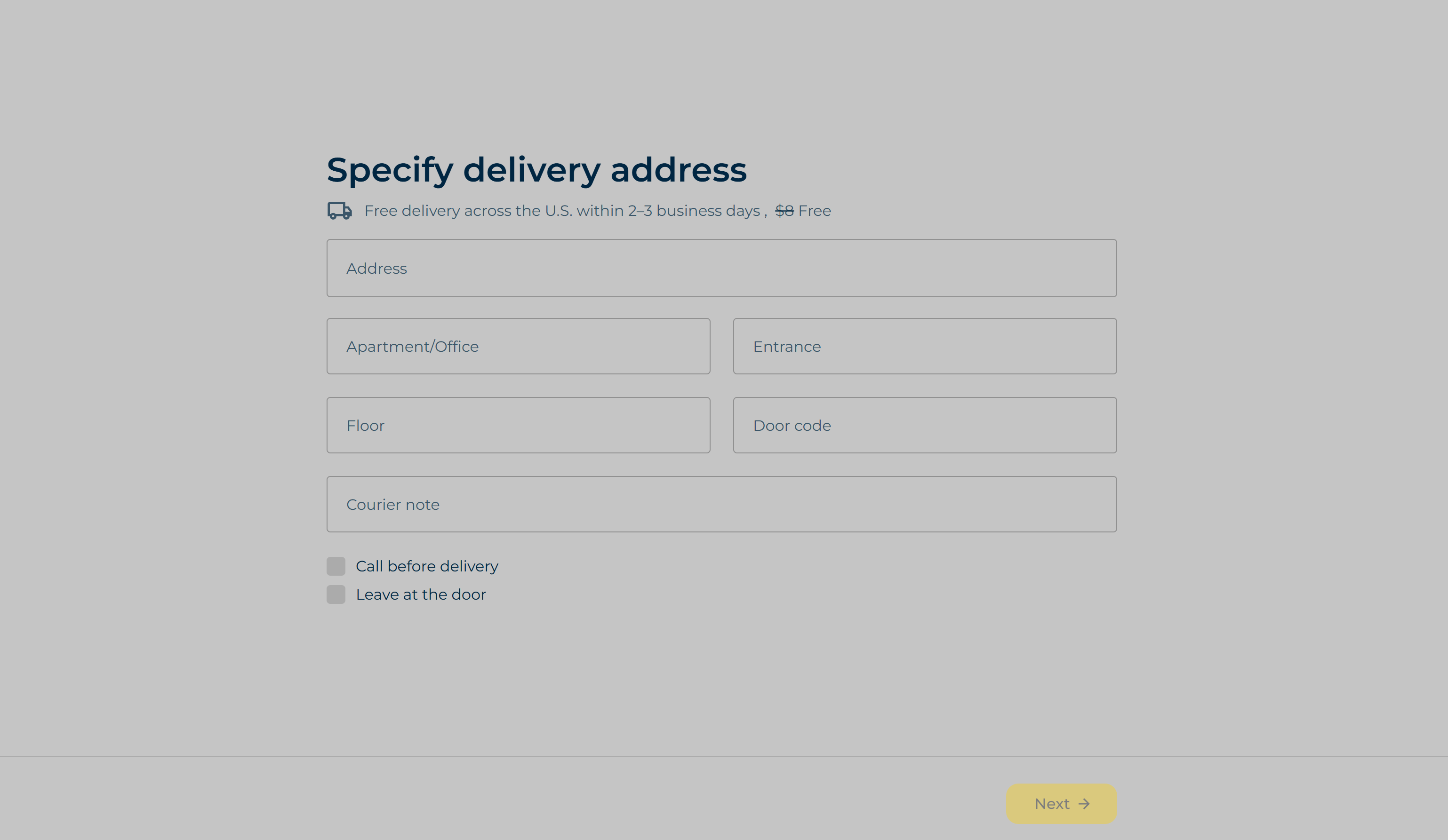
During checkout, a separate page for delivery parameters will appear.
How to set it up

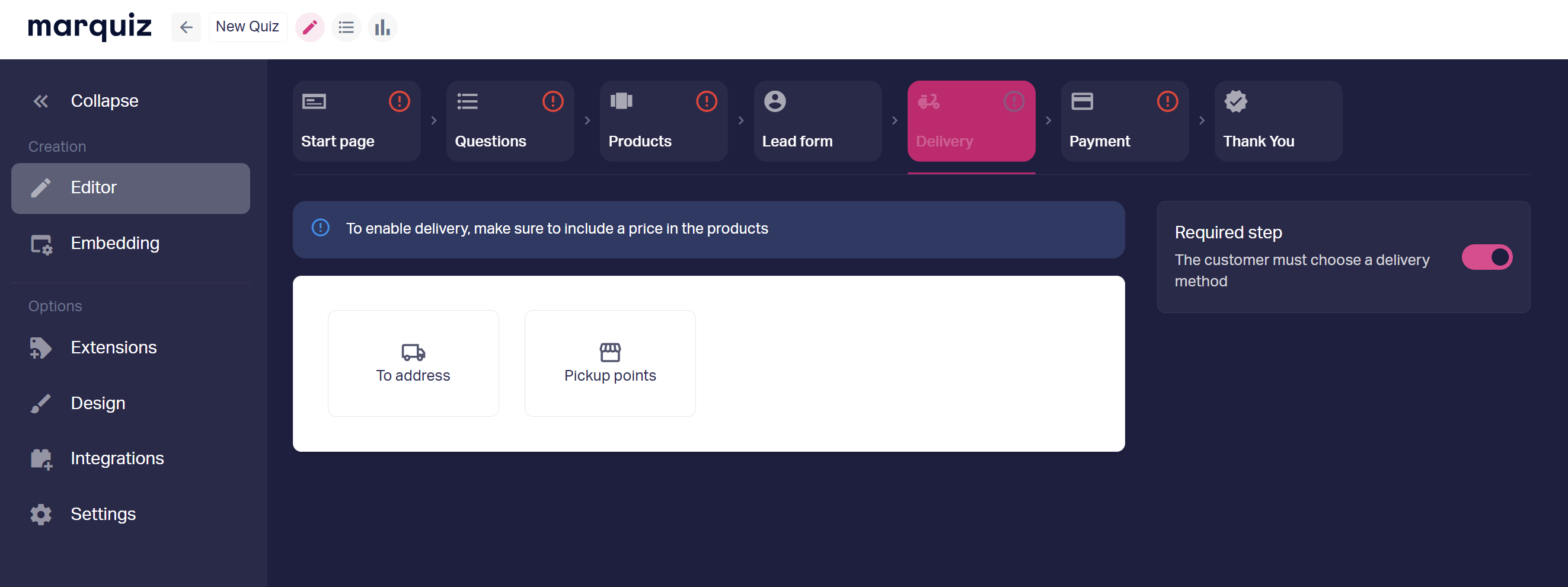
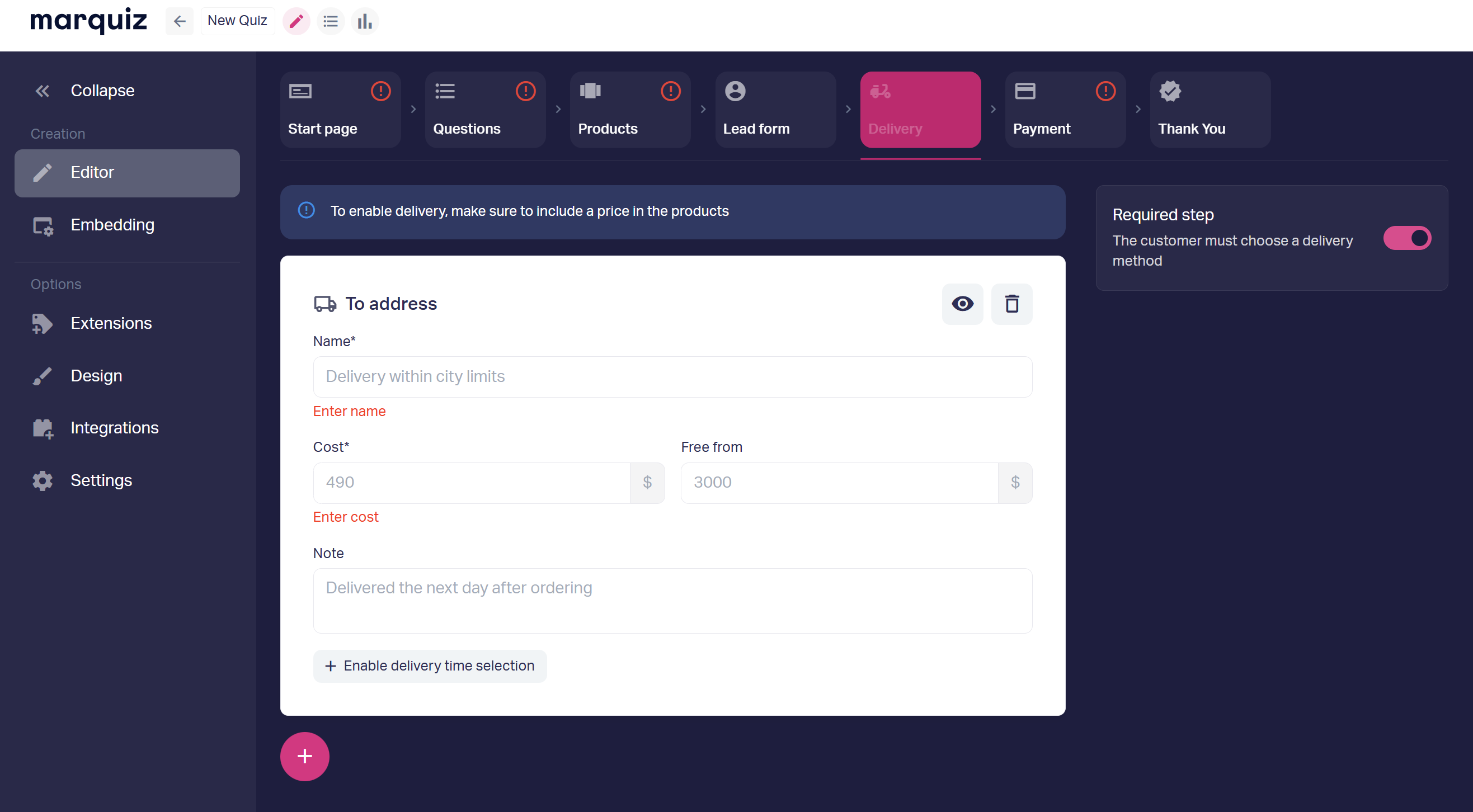
💡Instructions on how to add delivery to a quiz
Video on the start page and in smart tips
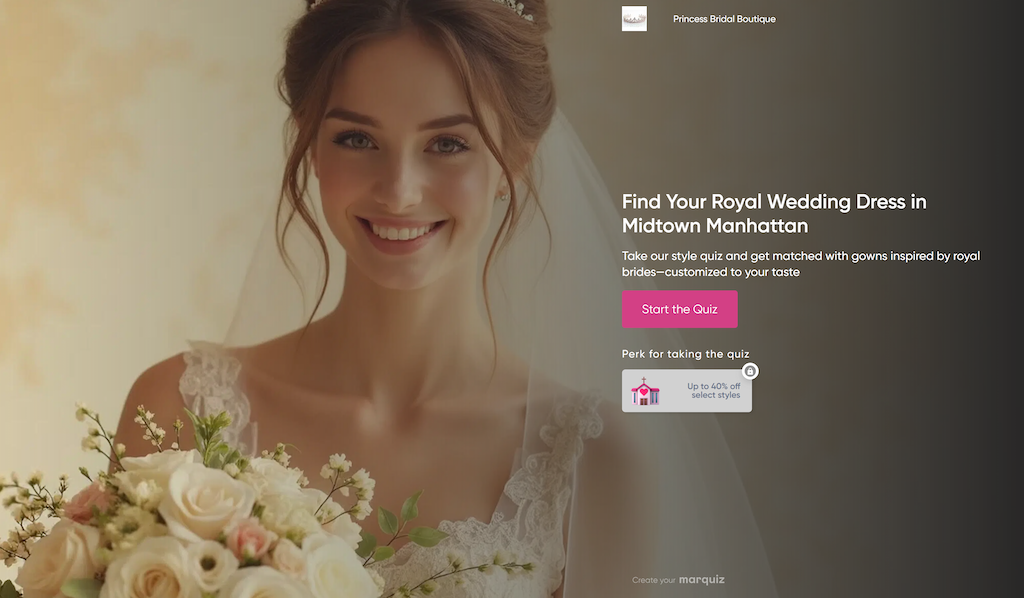
Video effectively showcases the atmosphere and appeals to emotions. It's great to have beautiful product photos, but video provides a more complete picture. Right from the start page, you want to see what's in the store with such a beautiful display.
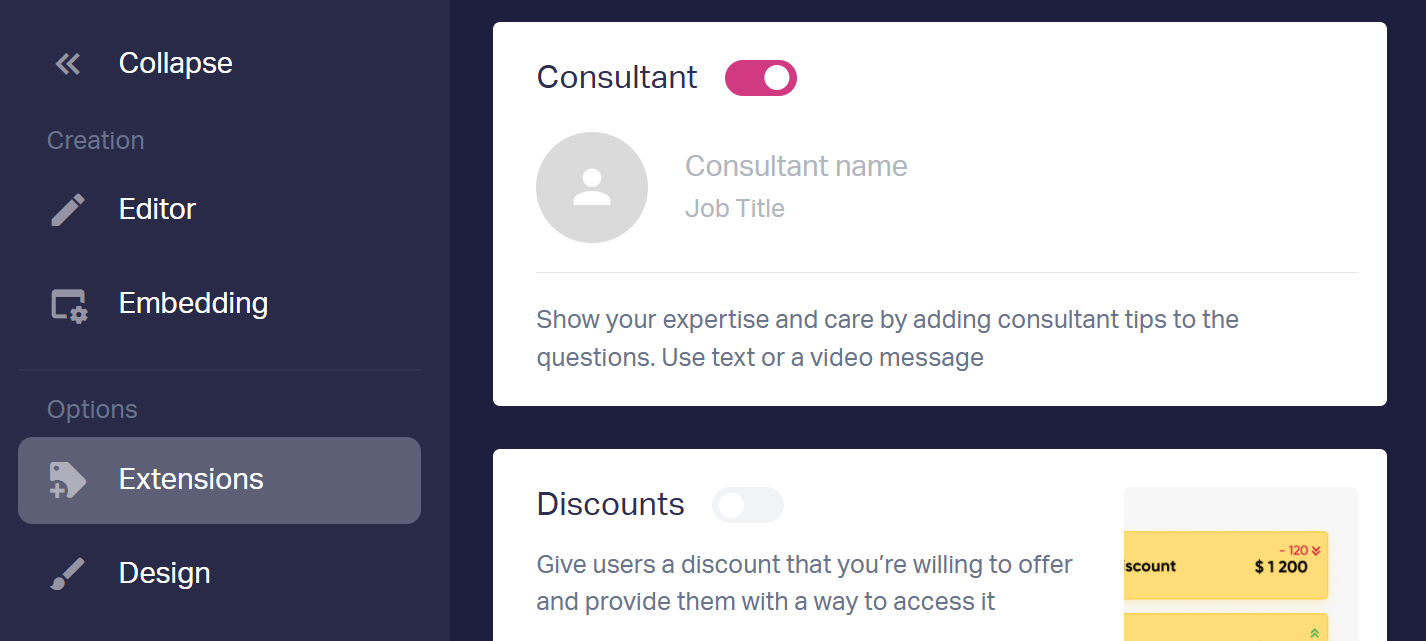
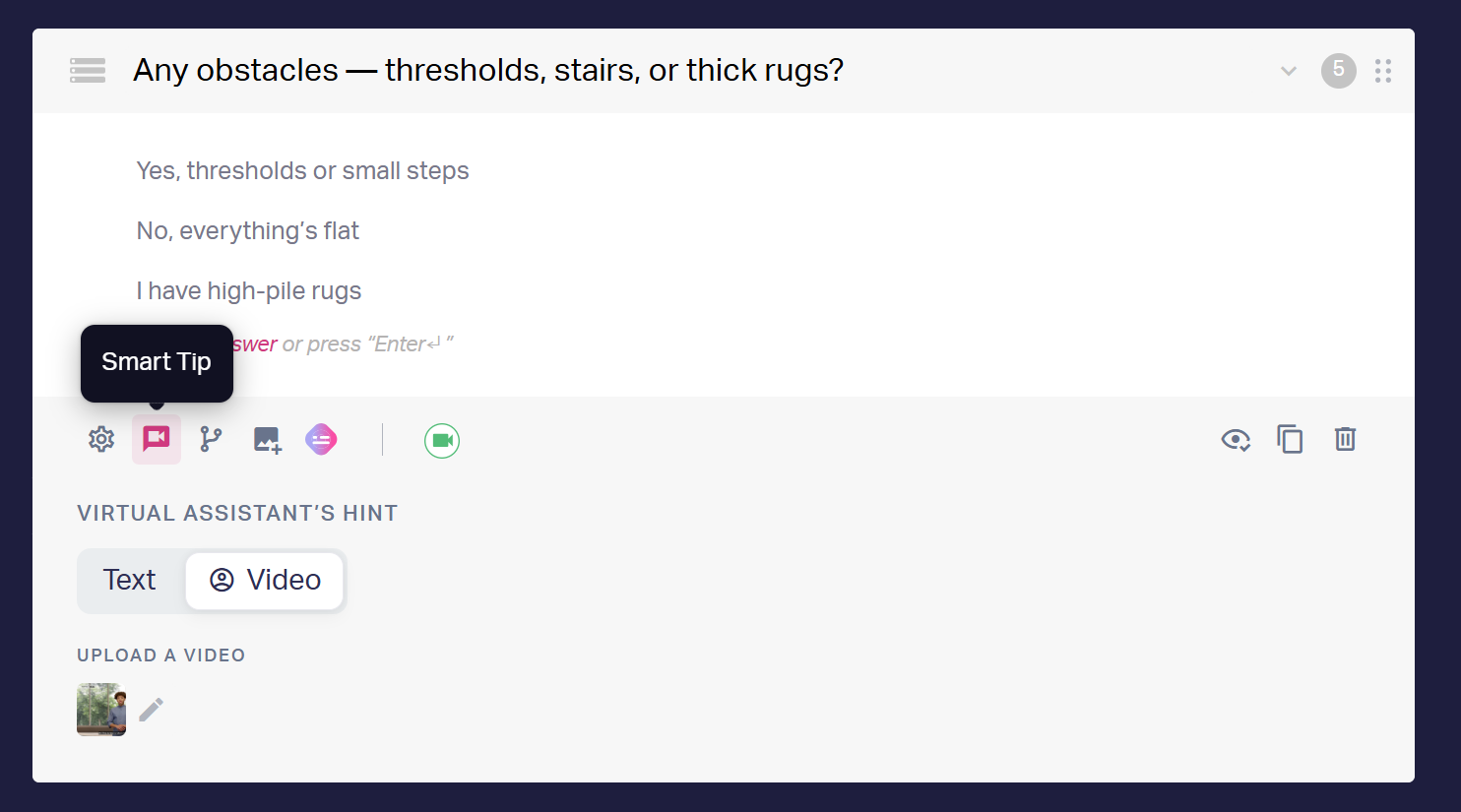
Video can also be added to assistant’s hints. A product demonstration or a manager's message — anything that adds +1 to the decision-making process.
How to set it up
1. Go to the "Extensions" tab
2. Enable the "Consultant" toggle, add an avatar, enter name and position
3. Add a text tooltip or upload a video file
Dynamic content
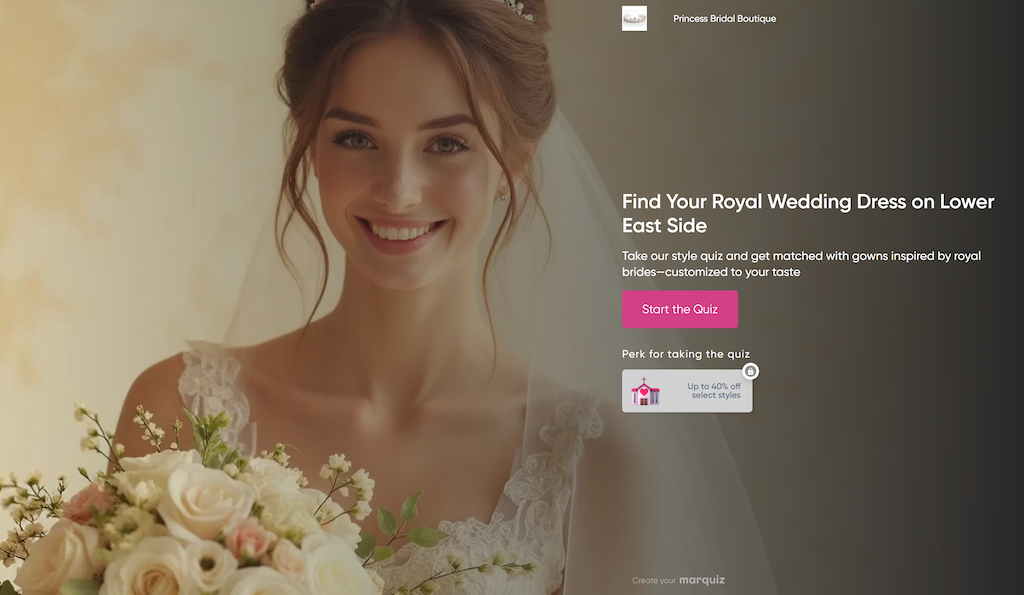
This is a powerful feature that eliminates the need to create multiple similar quizzes that differ only in one parameter. Content in the quiz can change based on incoming traffic parameters — location, offered products and services, or the store itself.
For example, the contact form will pull in the correct store address that was set by geolocation in the UTM tag settings:
How to set it up
1. Go to the "Extensions" tab
2. Enable the "Dynamic content" toggle in the "Advanced extensions" section.
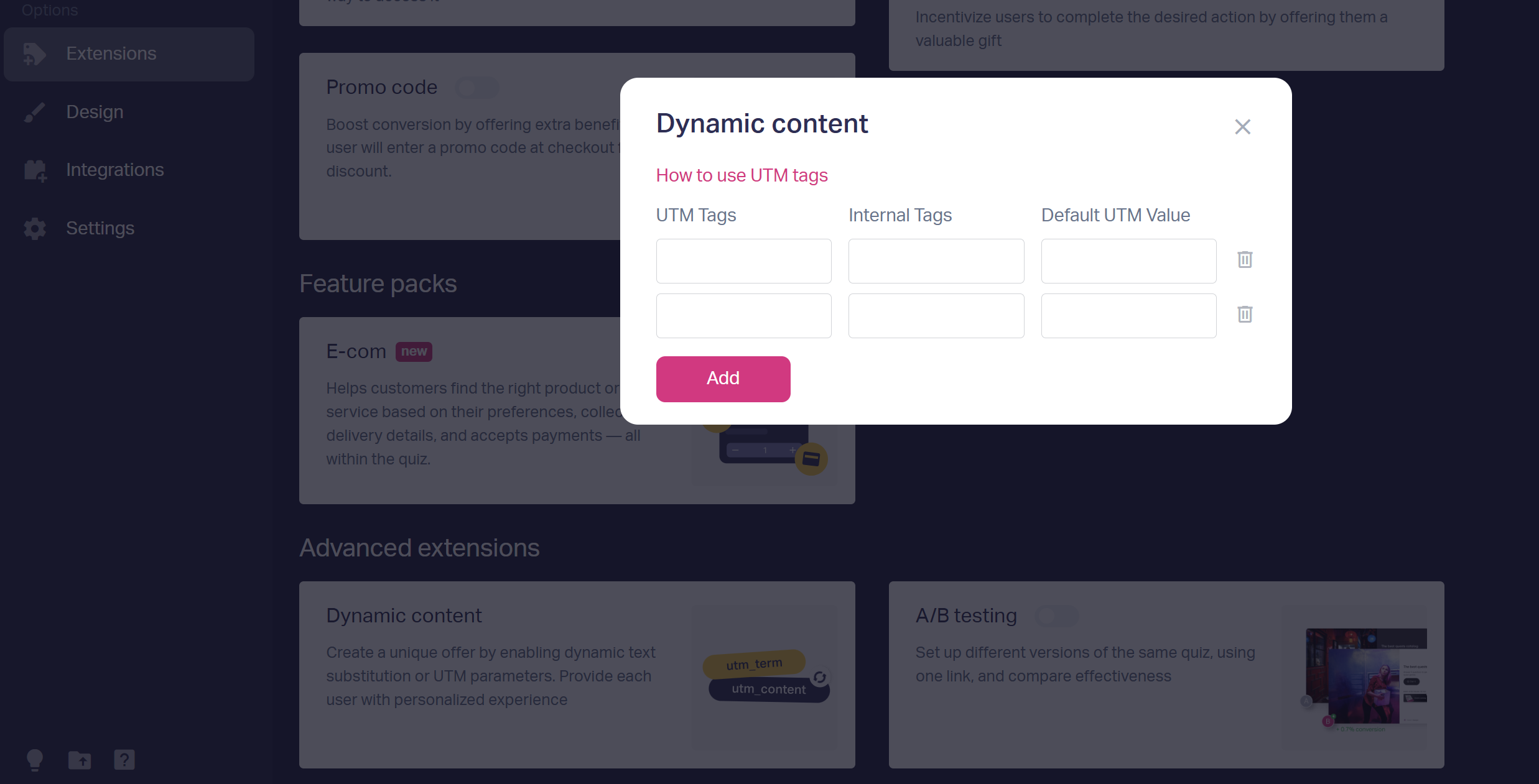
3. Write the tag name in curly brackets in the quiz
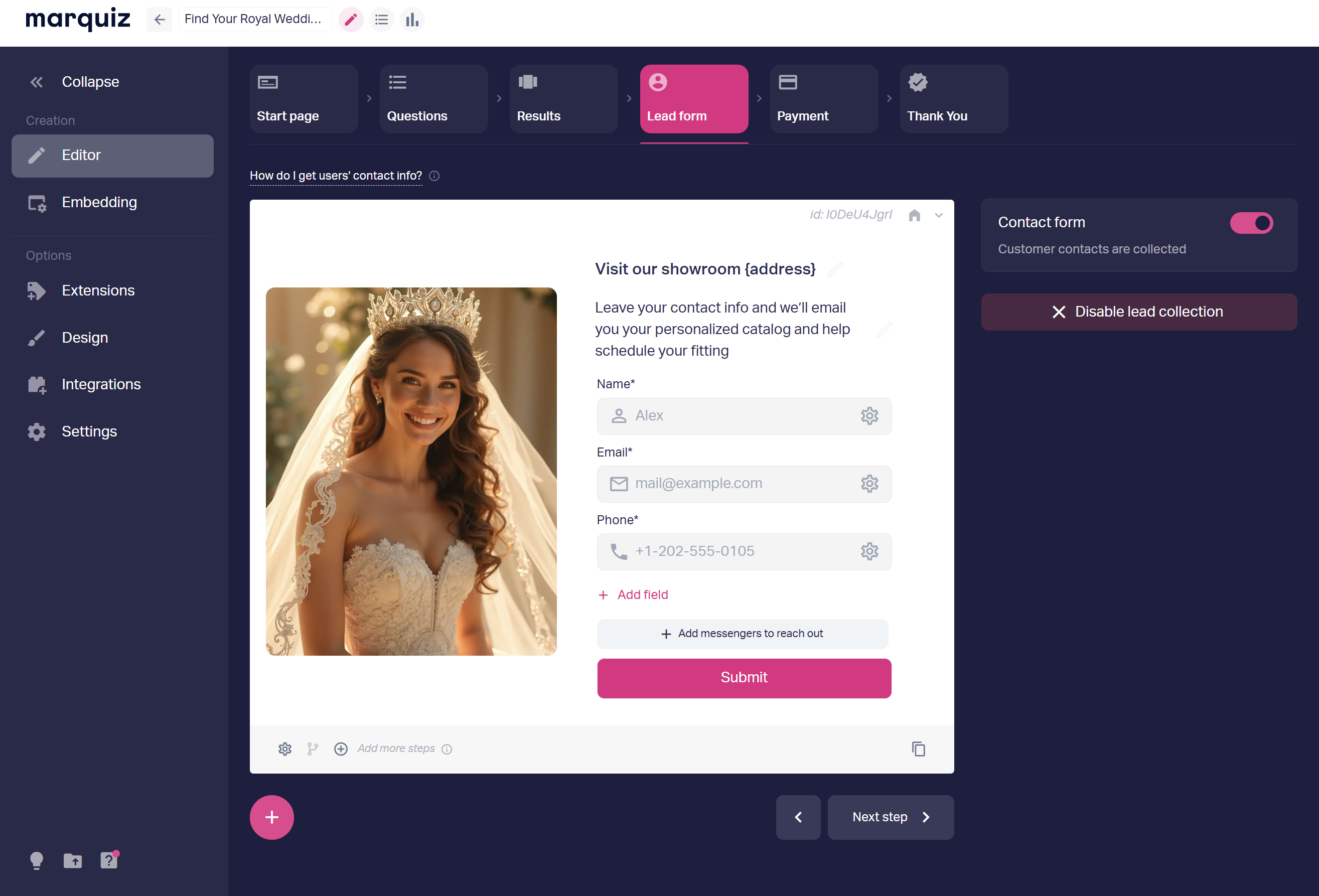
Instructions on how to set up UTM tags in a quiz
Discounts, bonuses, badges, and promo codes
Discounts and bonuses throughout the quiz — in e-commerce, such features boost conversion. Plus, at the product selection stage, in the description, it's useful to add a couple of conversion touches. Badges and promo codes to strengthen the desire to buy at the finish line.
A "Best Seller", "Sale" or "Original Product" badge acts as a focus point, creating additional emphasis. The visitor was shown a discount from the very beginning, but then a promo code appears and the price drops even lower.
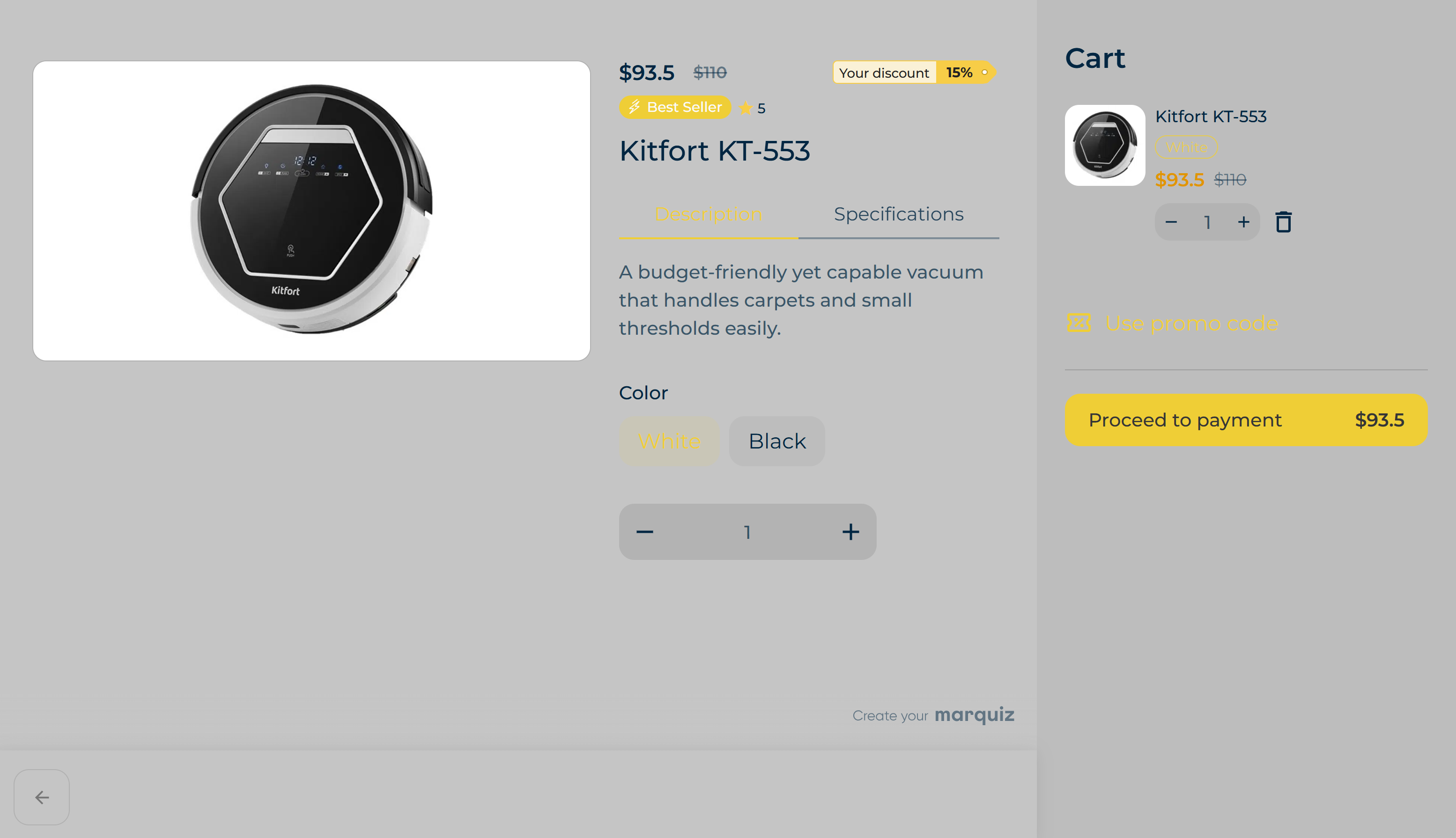
Detailed instructions on how to build a product card and how much you can neatly fit on it.
How to add badges
- Go to the result card
- Add the badge text and color as you see fit
- Add a star rating for the product
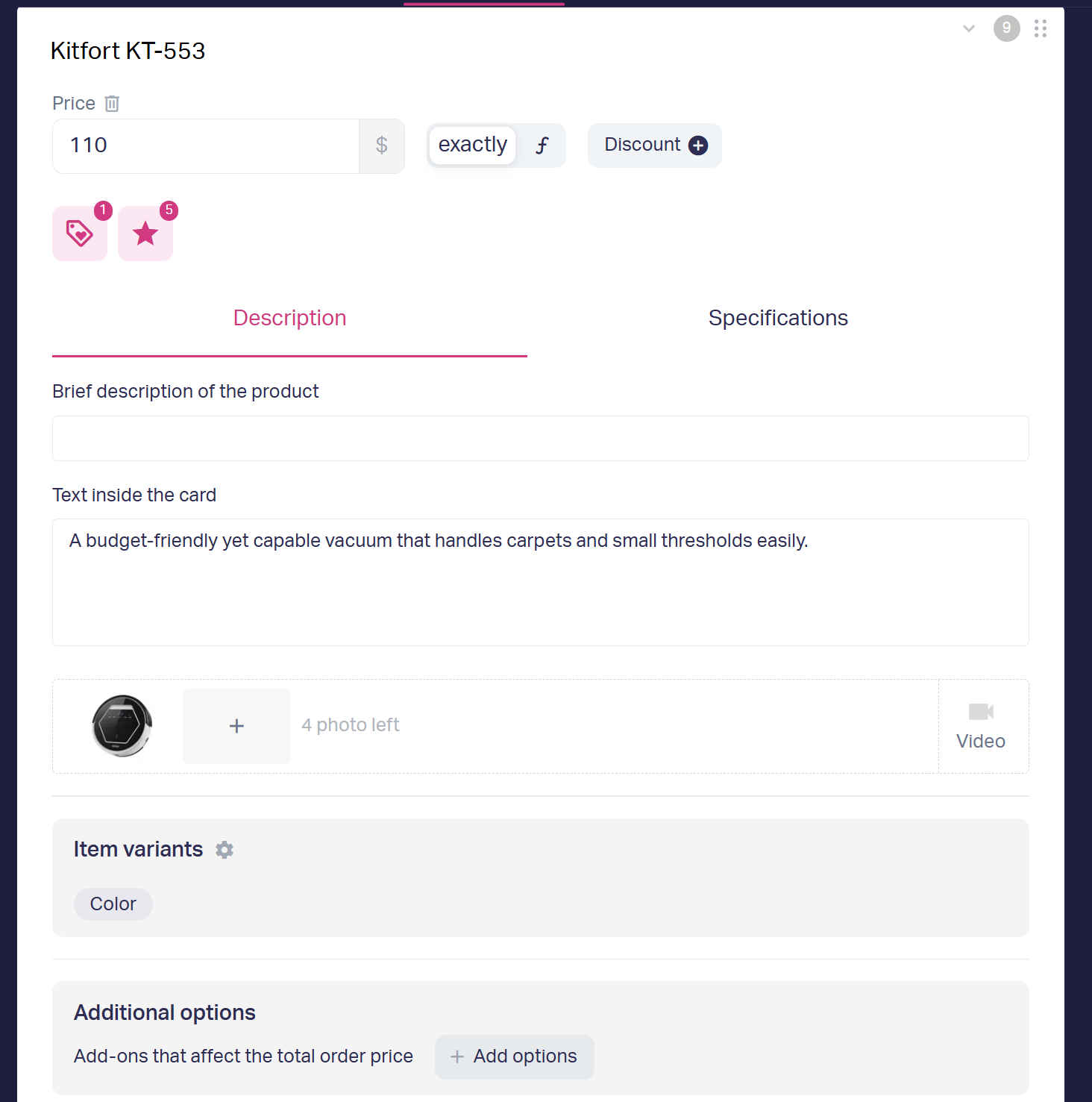
The product card pulls in the user's answers and creates a personalized description. Pay attention to the @ function.
There's also an instruction for this feature
How to add promo codes
1. In the same "Extensions" tab, enable the appropriate toggle
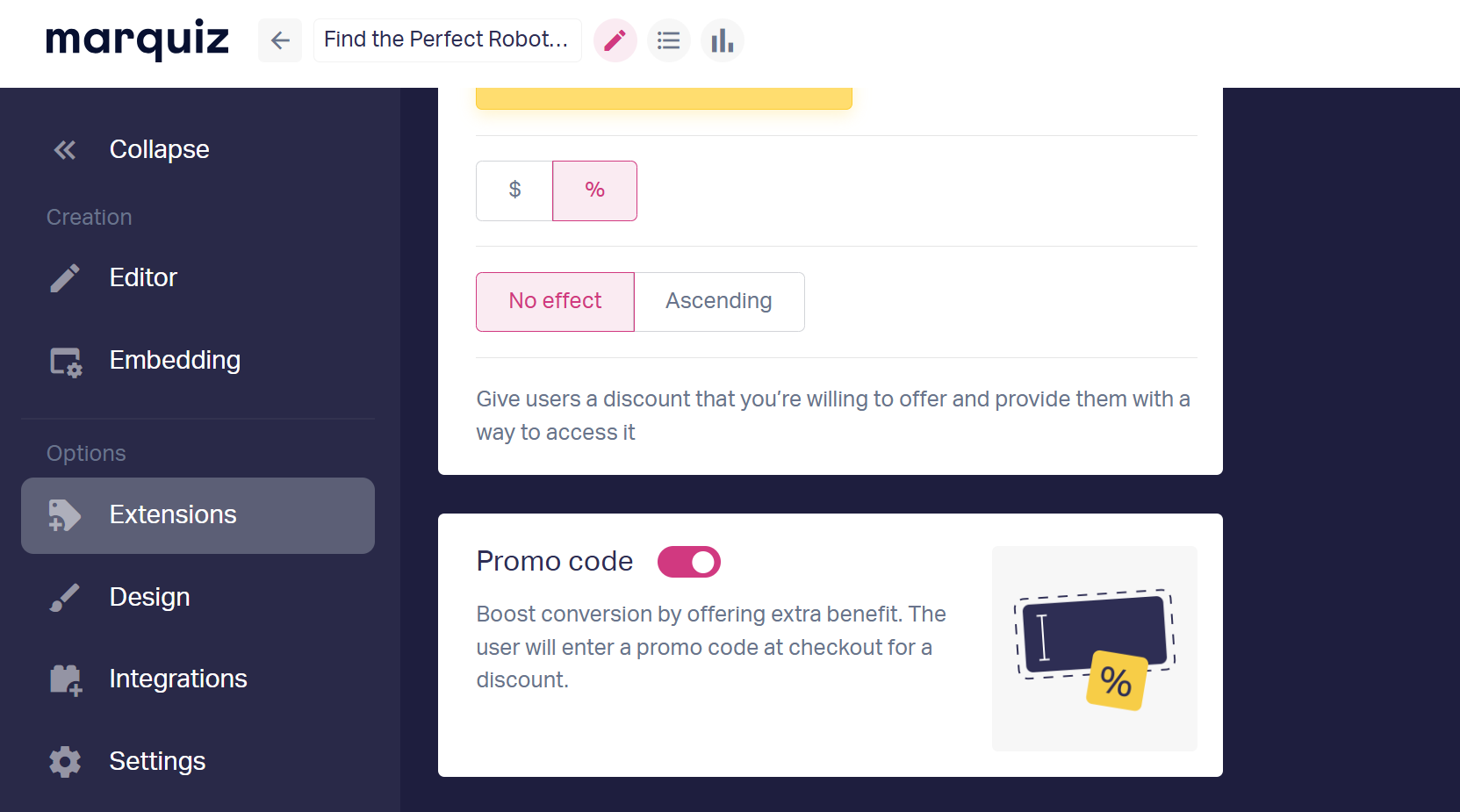
2. Configure what the promo code will be called and what the value will be. You can add multiple promo codes, both as a percentage discount and in currency.
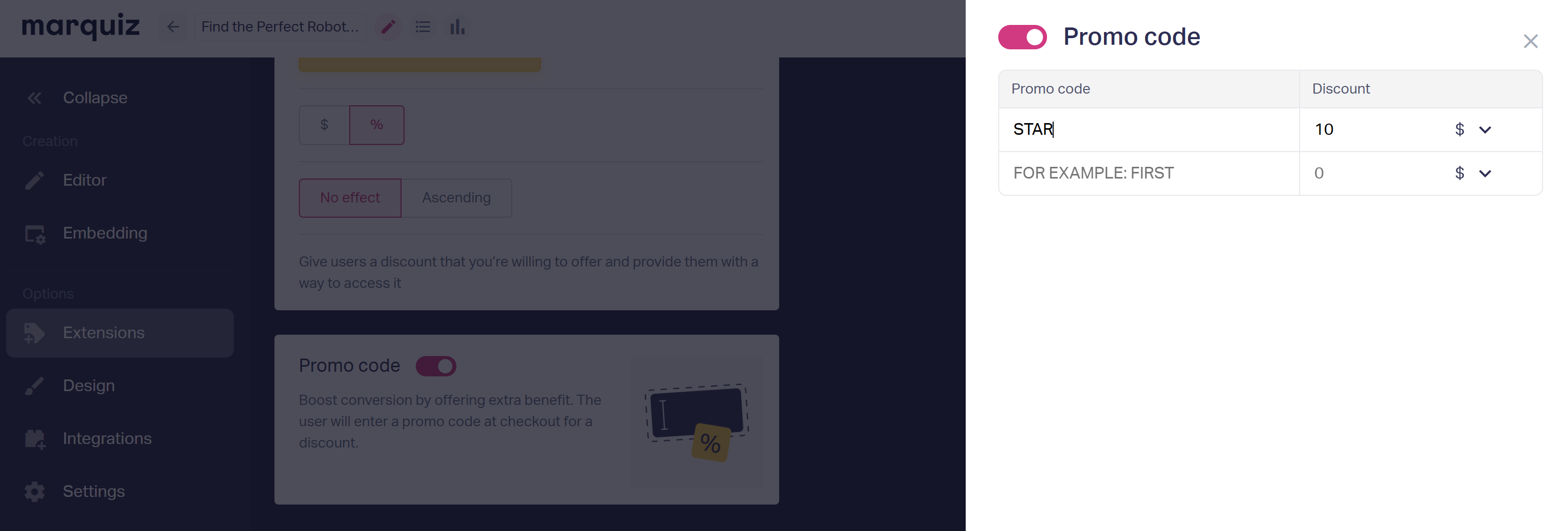
If something doesn't work with the setup — come to support, click the hand icon in the bottom right corner of the panel.
💡 If you're already actively using the quiz store, tell us about your experience and what you'd like to improve in the interface. It's important to us to make the quiz store a full-fledged assistant for your business
We continue to improve the quiz store. We want to give our clients an effective sales tool, without marketplaces and online stores. Thank you for being with us ❤️


.jpg)